
Agentic support for your hardest Zendesk tickets
Pebble resolves the 30% of tickets your AI agents can't: the ones that need real investigation, not a help-centre article.
Tag a ticket and Pebble digs through your logs, database, and code, then posts the root cause as an internal note before your agent even opens it. It even drafts the customer reply, ready to review and send.

It works the ticket like your best support engineer
When Pebble picks up a ticket it reads the whole thread — including your internal notes — then investigates the systems where the answers live: your codebase, Sentry, Datadog, GCP and AWS logs, a read-only database connection, past tickets, docs, and Slack history.
How it works in three steps
Step 1. Ticket comes in from your customer and gets tagged. Pebble gets to work, investigating across your systems.
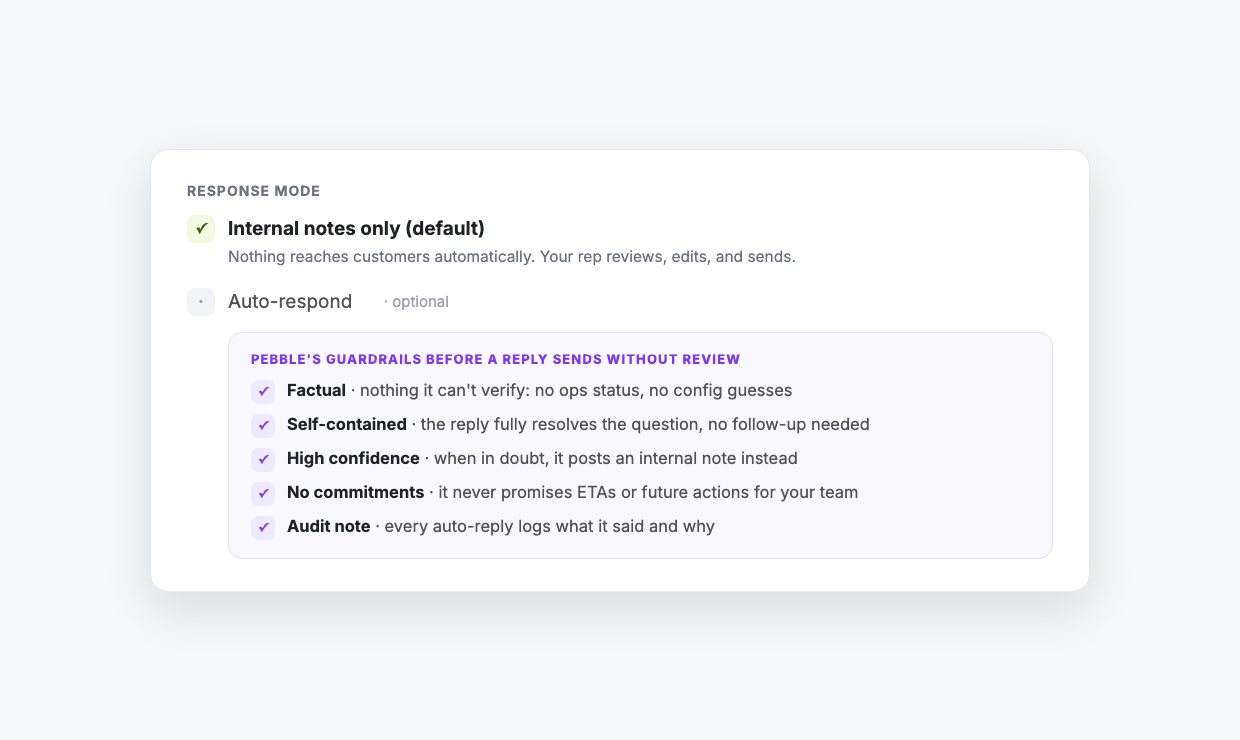
Human-approved by default: nothing goes to a customer until your agent sends it
Pebble writes internal notes and drives its sidebar app. In Zendesk there is no path that posts customer-visible content — not autonomously, and not behind an approve-and-send button either. The suggested reply sits inside the internal note under its own heading, and your agent copies it into Zendesk's own reply box.
Pebble is built to say “I couldn't determine this” rather than guess, and it flags what it couldn't establish. Those flags are the point: they tell your agent the limit of what's known, which is exactly what should make it into the customer reply.
It shows its evidence — the log lines, the code path, the record state — so your agent can judge the conclusion instead of taking it on faith.
When it's really a bug, engineering gets the ticket with the investigation attached
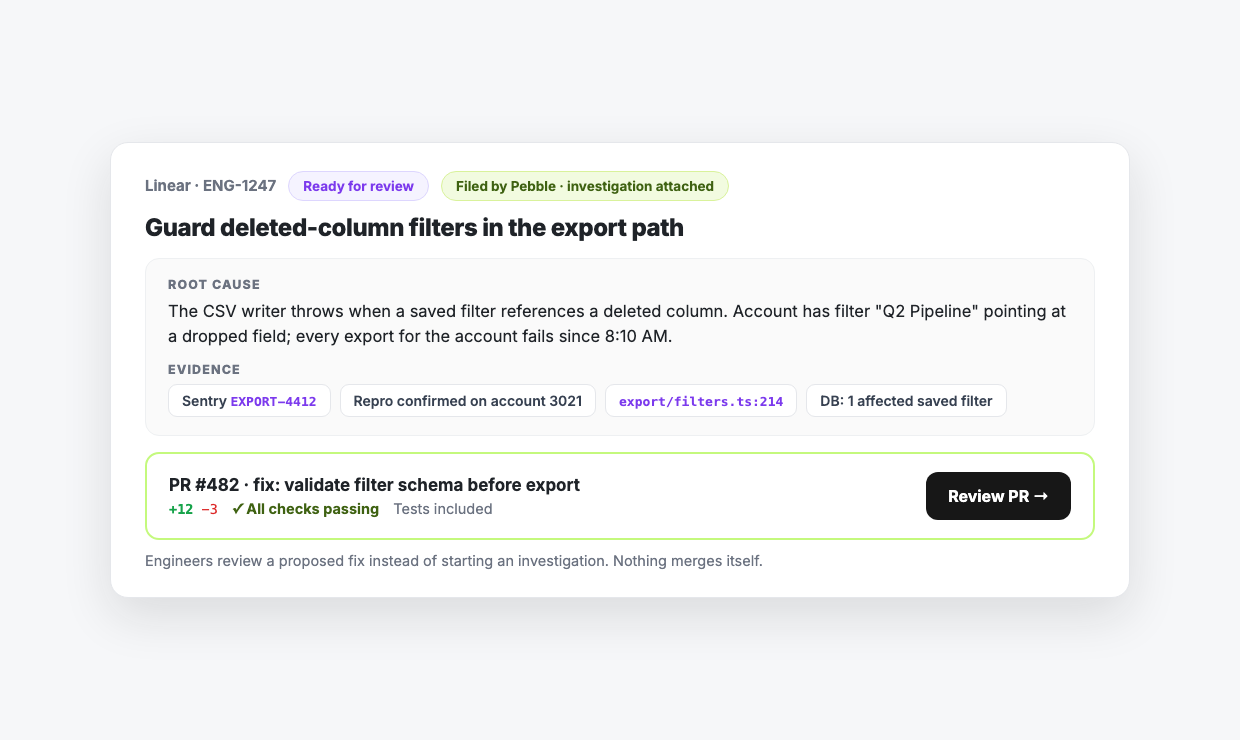
Pebble files the Jira or Linear issue with the full investigation attached and linked back to the Zendesk ticket, and opens a GitHub PR ready to review. The link is what stops the ticket going dark: as the issue moves through Requested review and Waiting for CI, your agent can answer “where is this?” without asking anyone.
How is Pebble different from Zendesk's AI agents?
AI agents answer questions. Pebble investigates problems.
Zendesk's AI agents resolve what your help centre already covers — deflection, suggested articles, drafting from macros you've written. Pebble works the tickets underneath that, where the answer isn't written down anywhere yet because it depends on what your production system actually did. They sit at different points in the same queue: let the AI agents hold the front line, and have your escalation path apply the Pebble tag to whatever they can't close.
You decide which tickets Pebble touches
Pebble does not wade into every ticket in your queue:
Setup: authorize Zendesk, install the sidebar, set your tag
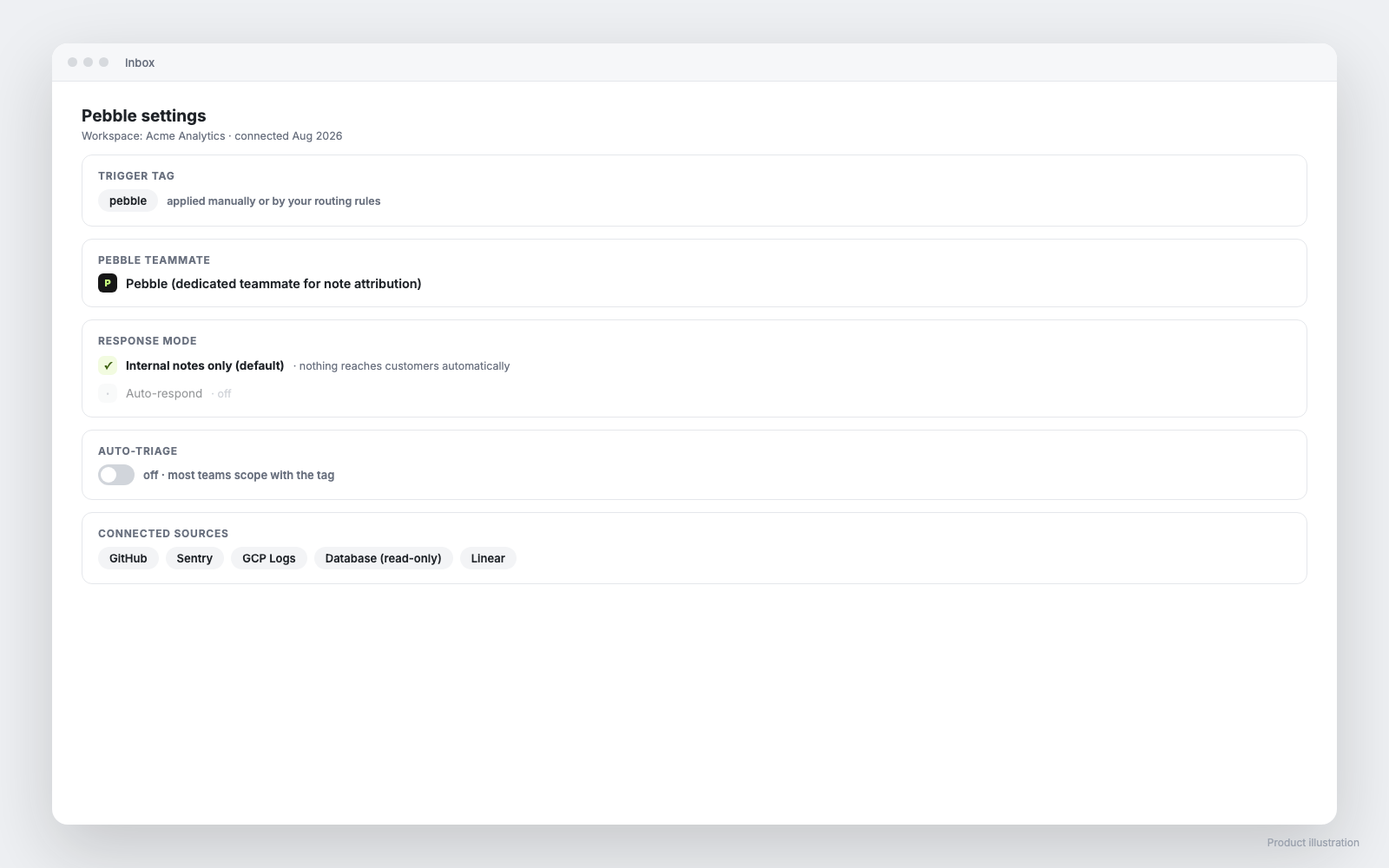
- In Pebble, connect Zendesk and enter your subdomain — you'll need a Zendesk admin
- Install the Pebble sidebar app, using the subdomain, API base, and shared secret from Pebble's settings page
- Set your trigger tags — most teams use a single tag called “pebble”
- Pick the Zendesk agent identity Pebble posts under; a dedicated “Pebble” agent keeps your team's metrics clean
- Connect investigation sources: GitHub for code, Sentry, Datadog, CloudWatch or GCP for logs, a read-only database, your issue tracker
About fifteen minutes end to end. Then tag one real ticket you already know the answer to — comparing what Pebble says against what actually turned out to be true is the fastest way to calibrate what your team trusts it with.
Common questions
Have more specific questions or want to see how it works?
Let's chat.